 GGX Help
Orders
Your sent and received orders and the lineup, and how to create, schedule, and manage orders.
Select ORDERS in the menu. The page has three tabs, each explained below: SENT, RECEIVED, and LINEUP.
Sent orders
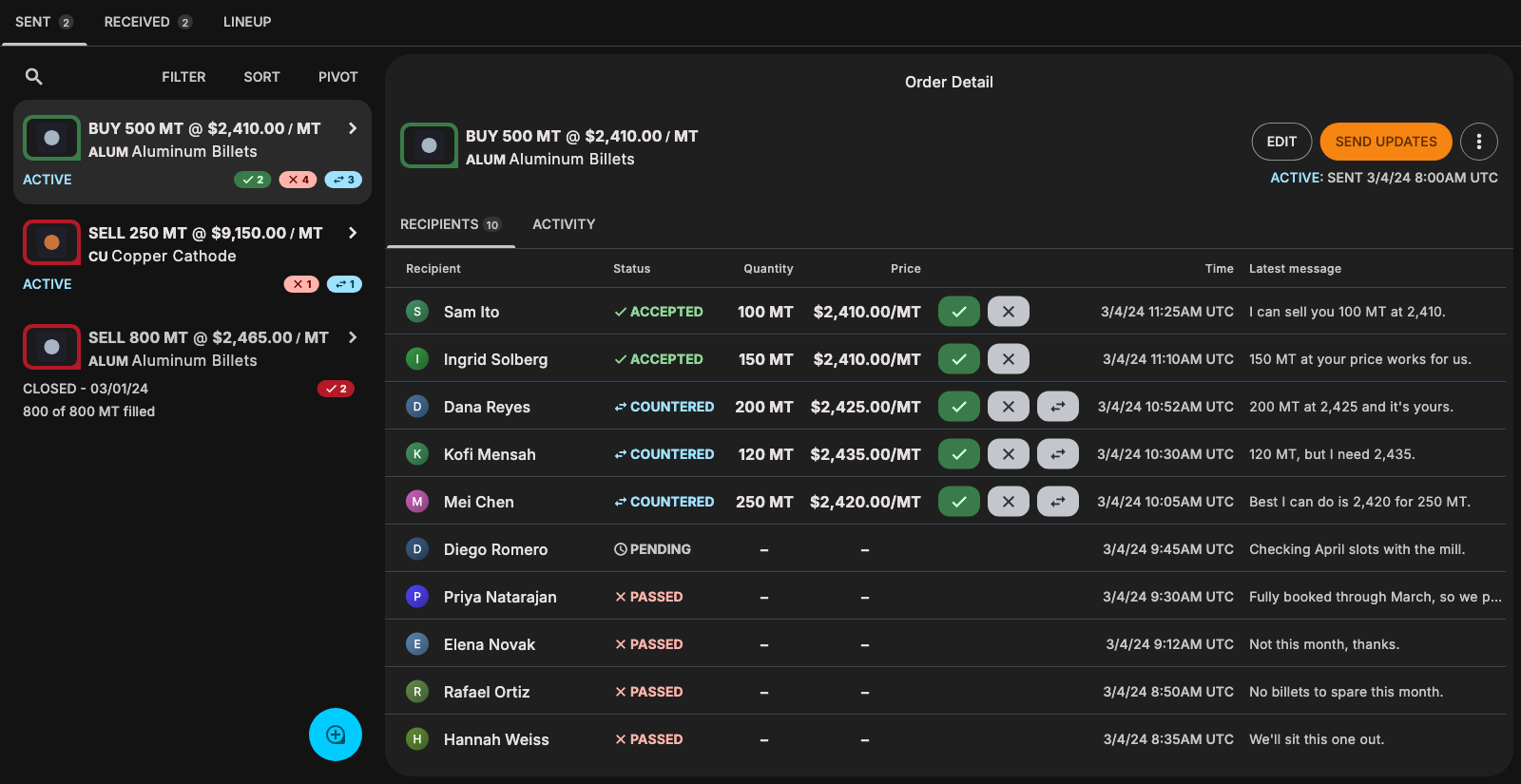
SENT lists your orders, drafts, and batches. Its badge counts your ACTIVE orders. Each order reads as its side, quantity, price, and product, for example BUY 500 MT @ $2,410.00 / MT of ALUM Aluminum Billets. Its status shows beneath it, with bubbles counting the recipients who accepted (✓), passed (✕), and countered (⇄).
- Search finds orders by ticker, product name, batch, or attribute.
- FILTER narrows the list by status or by side.
- SORT orders the list by status, the default, by most recently updated, or by ticker.
- PIVOT arranges your orders into bid and ask ladders by product and attribute.
- The + button creates an order. See Create an order.
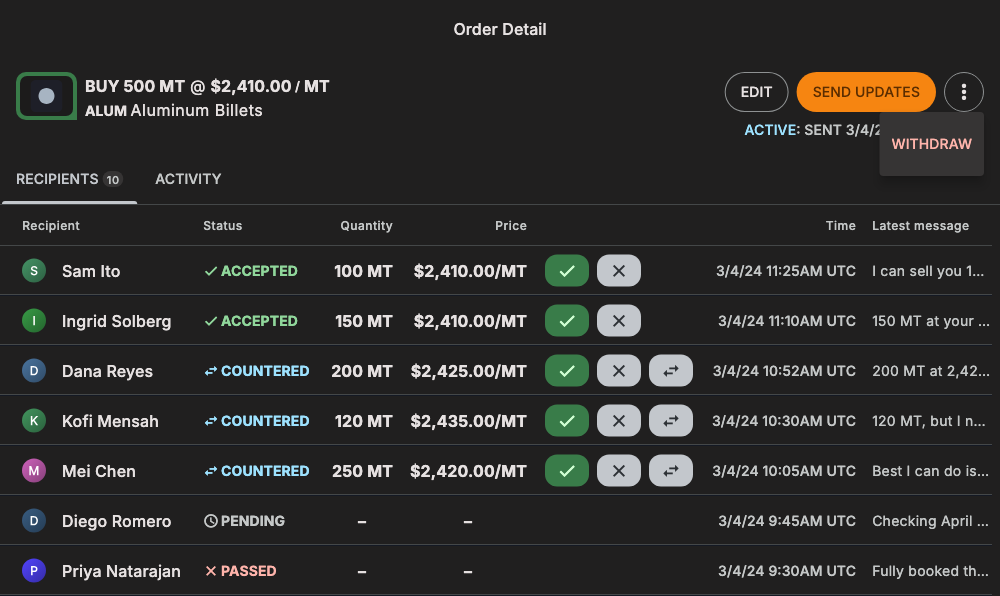
Select an order to open its details, beside the list on a computer or as its own page on a phone. RECIPIENTS lists everyone you sent it to and their answer, and ACTIVITY shows its history. In the example, ten traders answered one order to buy aluminum: two accepted part of the quantity, three countered with other terms, one has not answered yet, and four passed. The buttons beside an answer accept it (✓) or reject it (✕), and ⇄ counters a counter. See Manage an order you sent.
Received orders
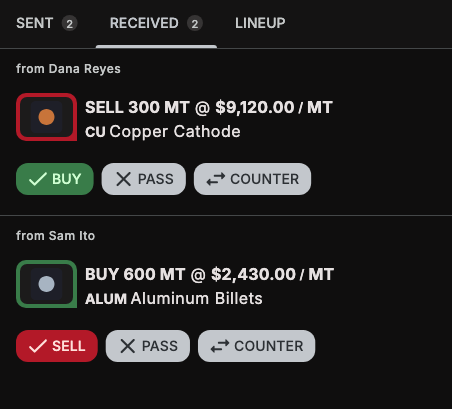
RECEIVED lists the orders other traders sent you, newest first. Its badge counts the ones waiting for your answer, and is highlighted when one has arrived since you last looked.
Each order shows who sent it. The first answer names your side of the trade: you BUY from an order to sell, and SELL to an order to buy.
- BUY or SELL accepts the order on its terms. Select CONFIRM BUY or CONFIRM SELL to send your acceptance.
- PASS declines it. Select CONFIRM PASS.
- COUNTER proposes different terms. Enter the QUANTITY and PRICE, select REVIEW BID or REVIEW OFFER, check the terms, and select SEND BID or SEND OFFER.
You can answer an order from the conversation it arrived in as well. See Orders in a conversation.
Lineup
LINEUP shows the open interest in one product: your orders, the orders you received, and the counters and acceptances on them. Choose the product in PRODUCT, where the products you trade come first. Then choose a view, TABLE, LADDER, or PROPOSALS. FILTER narrows the lineup, and GROUP opens its market depth.
Table
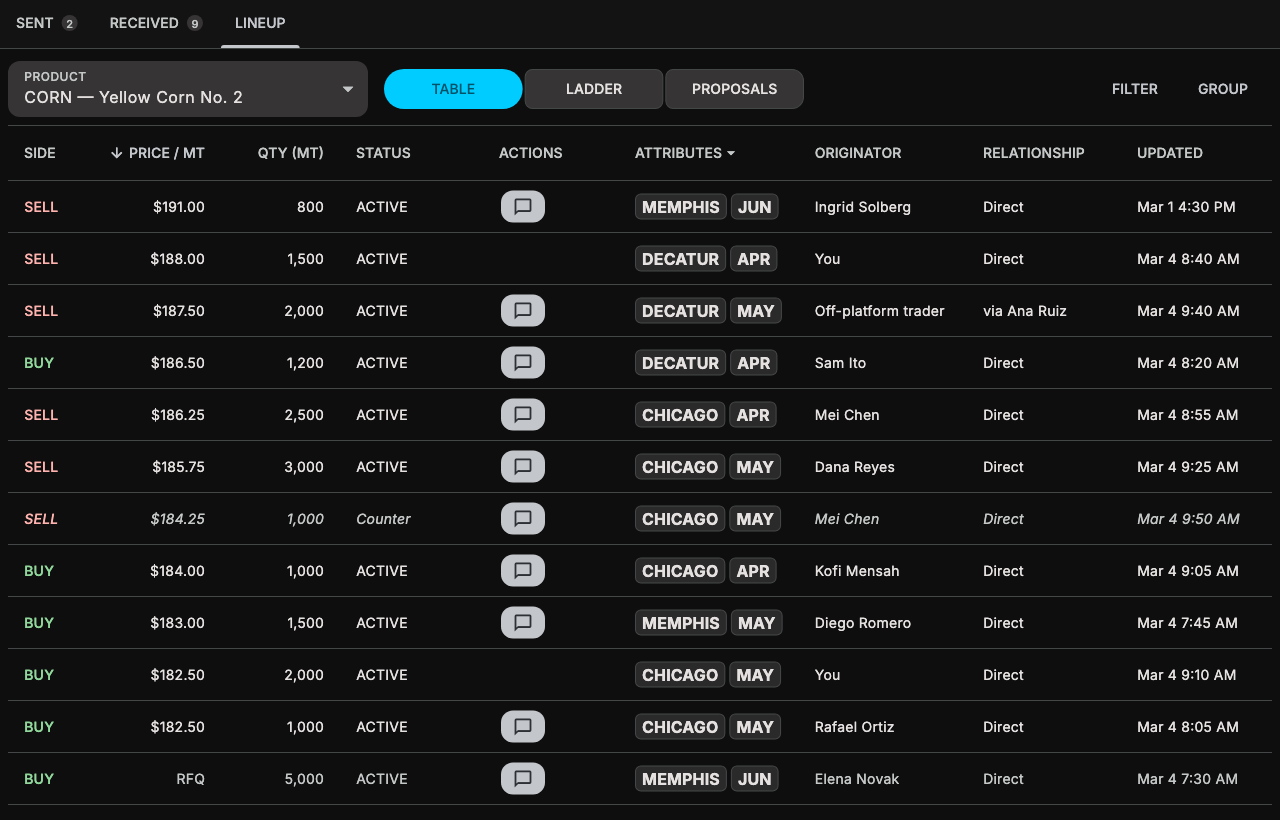
The table lists every order in the lineup, one per row, with its side, price, quantity, status, attributes, originator, relationship, and when it was last updated.
- Select a column heading to sort by it, and again to reverse the order. A third time returns to the default, highest price first. ATTRIBUTES ▾ sorts by one of the product's attributes.
- Select a row to open its order. A counter opens the order it answers.
- Select a row's attribute to filter the lineup to that value.
- The chat button opens the order's conversation. An orange Match button appears when GGX can pair the order with an opposite one.
- Counters and acceptances are in italics. RFQs and other orders without a price are muted and always come last.
- RELATIONSHIP reads Direct, Broker-managed, or the broker who manages the order. ORIGINATOR reads You, the contact's name, or Off-platform trader.
Ladder
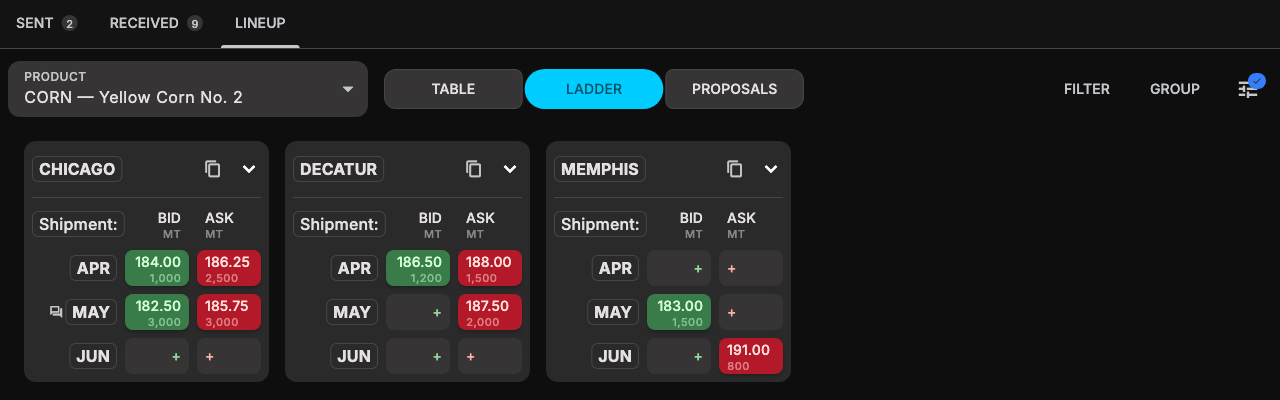
The ladder lays the lineup out as a card for each value of one attribute, with a row for each value of another: here, a card per location and a row per shipment month. Each row shows the best bid in green and the best ask in red, with the total quantity at that price beneath it. A + means that side has no priced order.
- Select a price, or a row's label, to see the orders in that cell.
- Select + to log an order with the cell's values and side filled in.
- An orange row means its bid meets or beats its ask, so those orders can trade. A handshake marks a match proposal awaiting approval, and a speech bubble marks counters or acceptances.
- The copy button on a card copies the ladder.
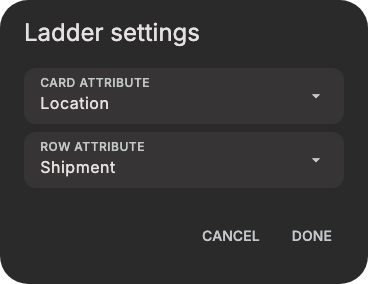
Select the sliders button to choose the CARD ATTRIBUTE and ROW ATTRIBUTE, then select DONE. The first time you open the ladder for a product, GGX asks you to choose them, and it remembers your choice for each product.
Market depth
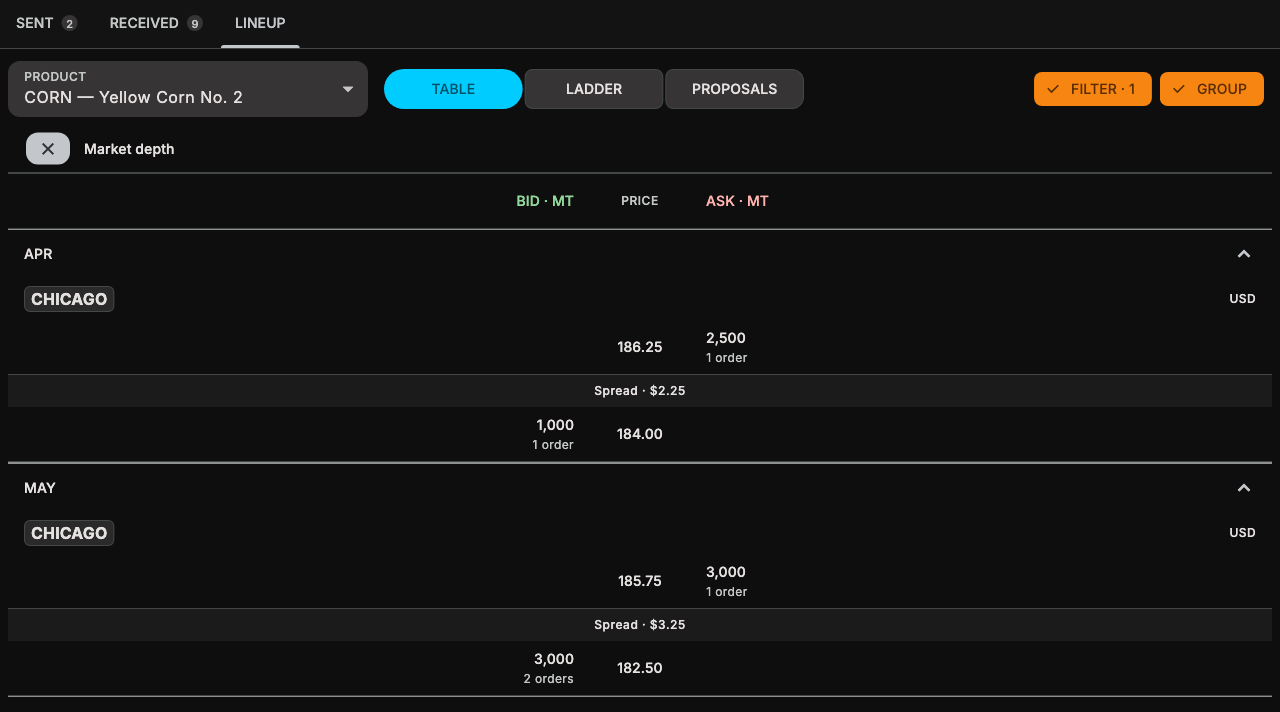
Select GROUP and an attribute to see the market depth for each of its values: the quantity bid and asked at each price, with the spread between the best ask and the best bid. Each price level shows its total quantity and how many orders it holds, and RFQs are listed apart. Select a level to see its orders. Select ✕ to return to the table, now with a section for each value.
Proposals
PROPOSALS lists your match proposals, with their product, price, quantity, buyer, seller, and status. Show active, completed, or cancelled proposals. When proposals are pending, the button shows how many.
Filter the lineup
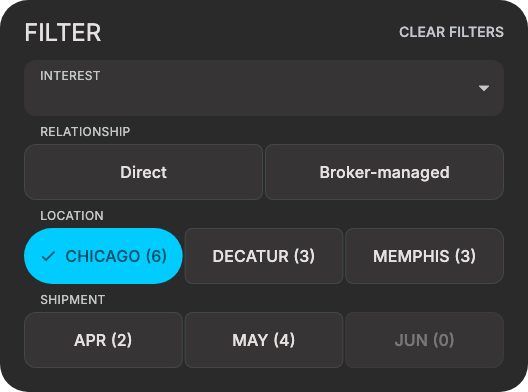
FILTER narrows the lineup in any view:
- INTEREST keeps your own orders, the orders you received, counterproposals, or acceptances.
- RELATIONSHIP keeps orders you deal on directly or through a broker.
- Each of the product's attributes has a field. Each value shows how many entries it would leave, and values that would leave none are dimmed.
An empty field matches everything. Within a field, any value you choose matches; across fields, all of them must. The button then reads, for example, FILTER · 1. CLEAR FILTERS removes them all.
Create an order
- On the Orders page, select the + button. On a computer you can also press O.
- Fill in the three steps, POSITION, EXECUTION, and SYNDICATION. Select CONTINUE to move on, or BACK to return.
- Send the order, schedule it, or save it as a draft. See Send, save, or schedule.
A step shows a check mark once its fields are complete, and you can go back to any step you have reached. GGX keeps an unfinished order on your device for seven days and restores it when you open the form again. The ✕ in the corner closes the form and discards it.
Step 1: Position
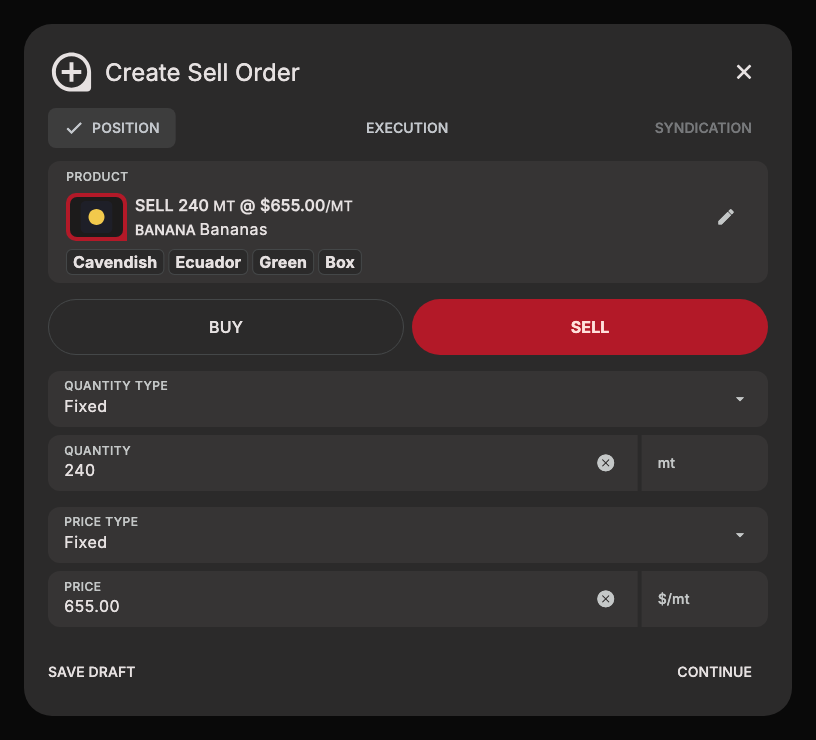
Product and side
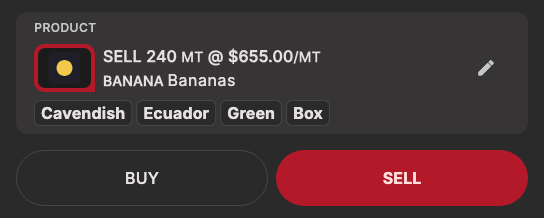
Select PRODUCT to choose one of your positions, or Add Product for a product you don't hold yet. Choosing a position sets the side, SELL for a long position and BUY for a short one, and fills in the whole position as the quantity. Select ✎ to change the product. On a blank form, Use previous order terms copies the terms of your last order.
Then choose BUY or SELL.
Quantity
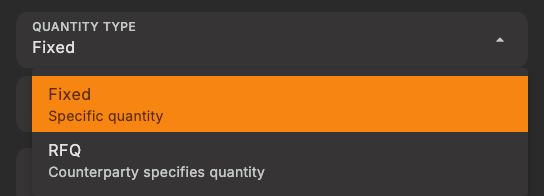
QUANTITY TYPE is one of:
-
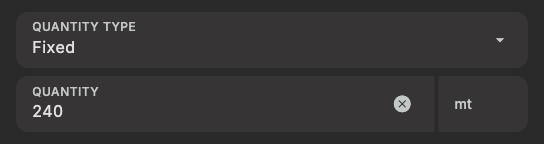
Fixed: you state the quantity. Enter it in QUANTITY, in whole units of the product.
-
RFQ, a request for quote: your counterparties propose the quantity, so the order has none. All or none is not available.

Price
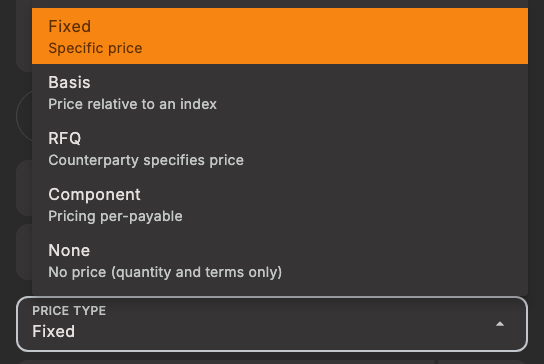
PRICE TYPE is one of:
-
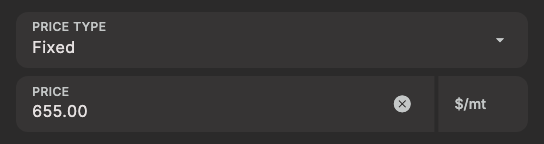
Fixed: a price per unit, in US dollars.
-
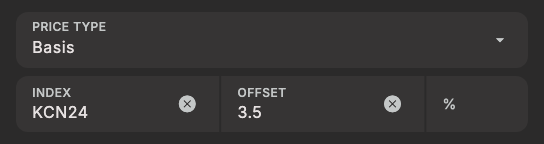
Basis: a price relative to an index. INDEX names the reference price, for example KCN24 for the July 2024 ICE coffee contract. OFFSET is the percentage above the index, so 3.5 prices the order 3.5% above it. The order reads KCN24: 3.5%.
-
RFQ: you ask your counterparties to quote a price.

-
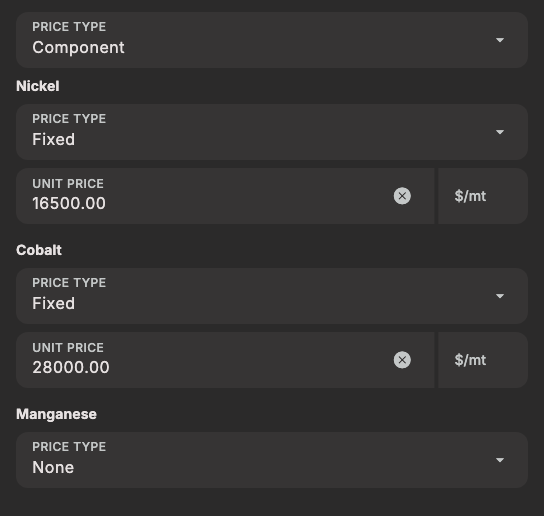
Component: a separate price for each payable component of the product, each Fixed, Basis, or None. It is offered only for products with payable components, and is their default.
-
None: quantity and terms only. Unlike RFQ, you don't ask for a price, and counters can't name one.

Step 2: Execution
Start and end time

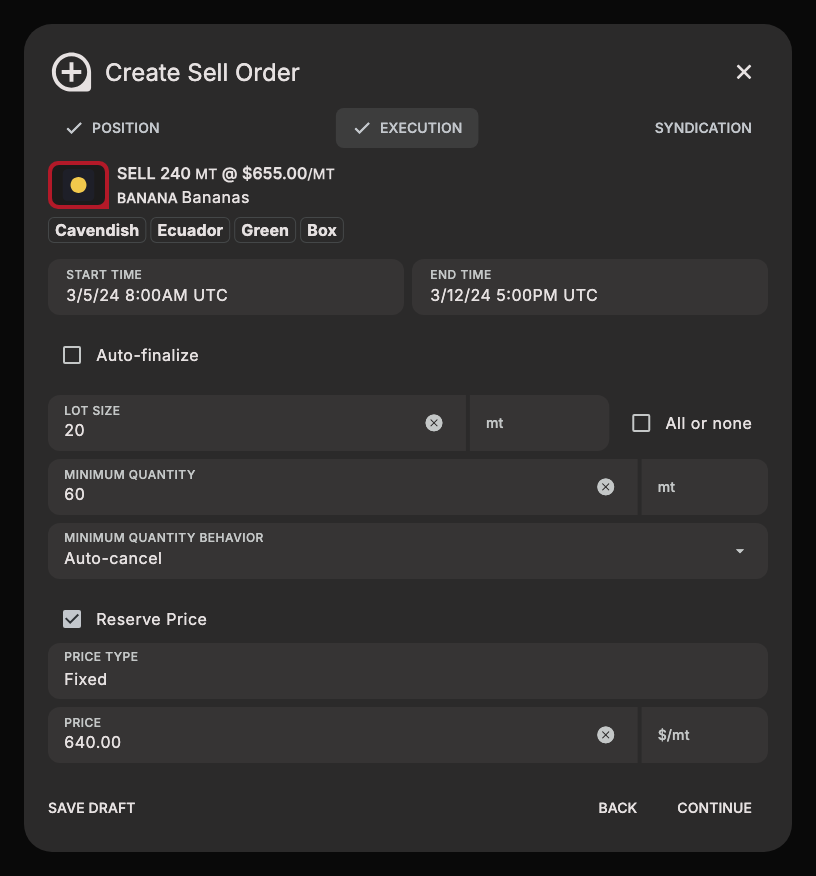
START TIME is Now unless you choose a later time, which schedules the order. See Schedule an order. END TIME defaults to seven days after the start. At the end time, GGX withdraws the order and tells its recipients it expired.
Auto-finalize
Check Auto-finalize to complete a trade as soon as a counterparty accepts the whole order, or a counter meets your reserve price. Leave it unchecked to confirm each trade yourself.
Partial fills
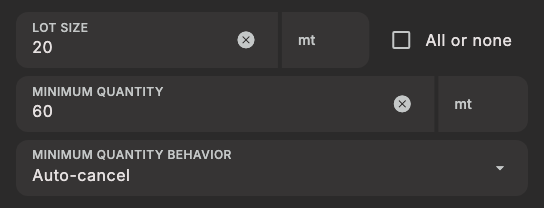
- LOT SIZE makes every answer a whole number of lots. With 20 mt lots, a counterparty can take 20 mt, 40 mt, and so on. A lot size of 1 sets no lots.
- All or none lets a counterparty take only the whole quantity.
- MINIMUM QUANTITY is the least one answer may take. Left blank, it is one lot.
- MINIMUM QUANTITY BEHAVIOR decides what happens when the quantity left is too small for these rules. Auto-cancel ends the order. All or none lets one counterparty take the rest in full.
The two minimum fields appear once the lot size is more than 1.
Reserve price
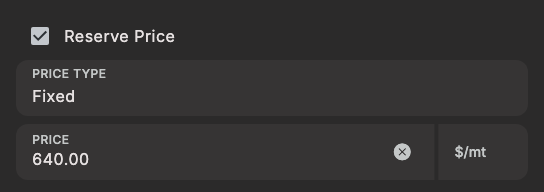
Check Reserve Price to set a private price that your counterparties never see. When a counter meets it, at or above it when you sell or at or below it when you buy, GGX accepts the counter for you. The counter must also fit the remaining quantity, lot size, and minimum, and change no other terms. With Auto-finalize, the trade then completes. Otherwise the counter waits as ACCEPTED for you to confirm.
A reserve is a fixed amount, so it works with Fixed and RFQ prices only. It can't be higher than your asking price or lower than your bid.
Step 3: Syndication
Visibility
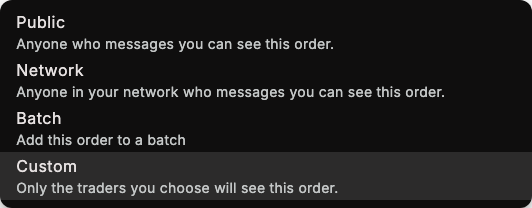
VISIBILITY MODE decides who sees the order:
- Custom, the default, sends it to the traders you choose.
- Network shows it to anyone in your network who messages you.
- Public shows it to anyone who messages you.
- Batch adds it to a batch. The order is saved as a draft and goes out when you publish the batch.
Network and Public orders are not sent to anyone directly.
Recipients
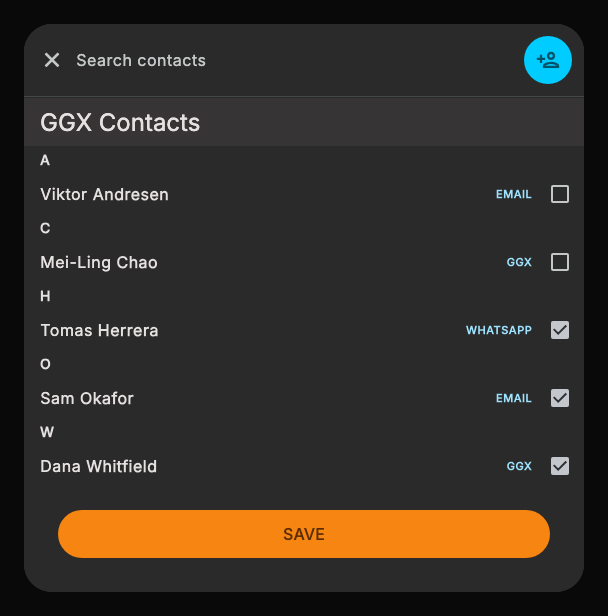
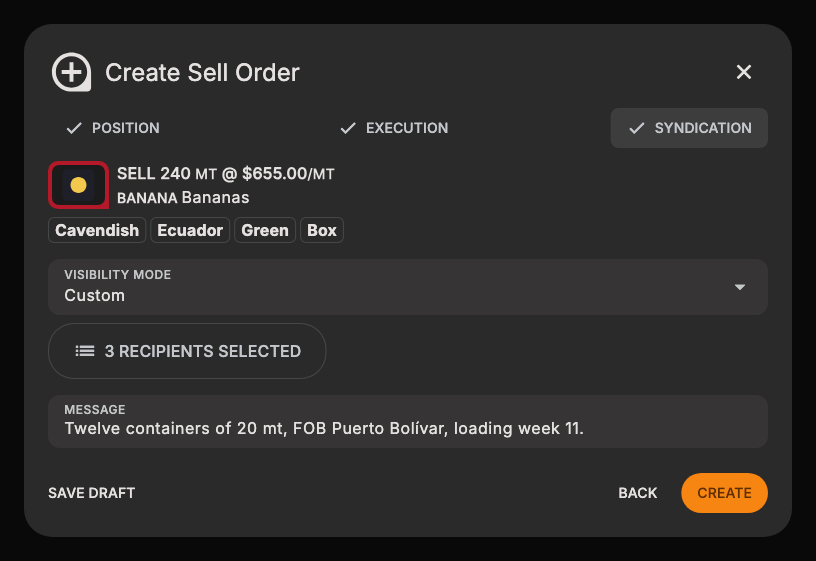
For a Custom order, select ADD CONTACTS, check the traders to send it to, and select SAVE. Each contact shows how GGX reaches them: GGX, EMAIL, WHATSAPP, SMS, or TRILLIAN. The button then reads, for example, 3 RECIPIENTS SELECTED. A Custom order needs at least one recipient.
Message
Add a MESSAGE to send with the order if you like. Batch orders have no message.
Send, save, or schedule

-
CREATE sends the order. When you chose its recipients, GGX first lists them for you to confirm.
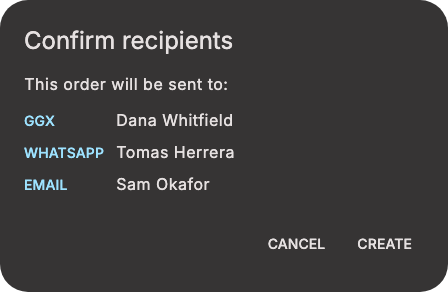
With a START TIME of Now, the order is ACTIVE and goes to each recipient's conversation with your message. With a later start time, it is SCHEDULED. See Schedule an order.
-
SAVE DRAFT saves the order as a DRAFT that only you can see. It is available on every step once POSITION is complete. See Draft orders.
The new order then opens on the Orders page.
Schedule an order
To send an order later, set its START TIME to when it should go out:
-
On the EXECUTION step, select START TIME.
-
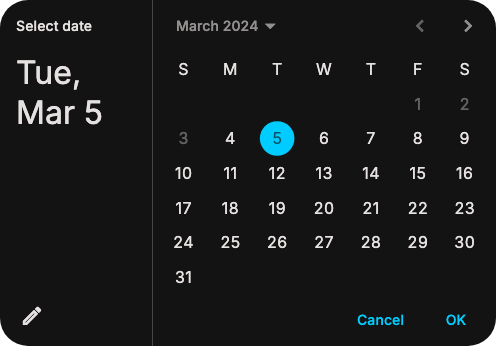
Choose the day and select OK.
-
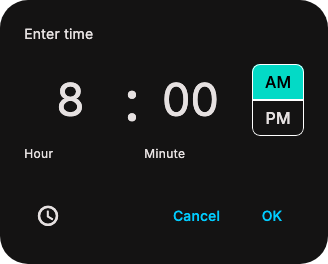
Enter the time and select OK. In the phone apps, a clock dial appears first.

When you select CREATE, the order is SCHEDULED. Only you can see it until its start time, when it becomes ACTIVE and goes out to its recipients.
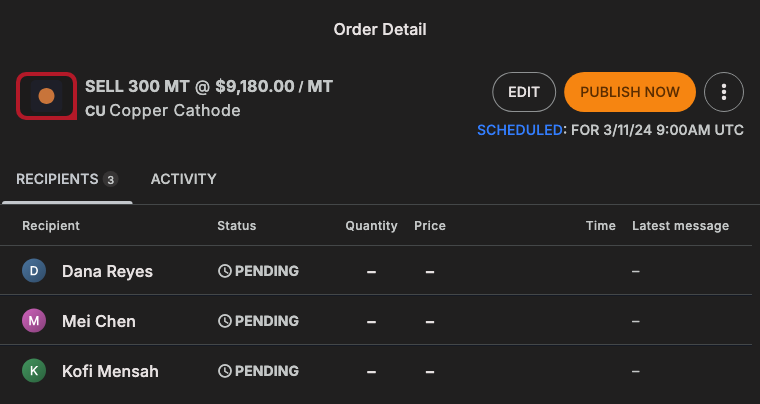
A scheduled order's details show when it goes out, and offer:
- EDIT changes the order. It stays scheduled, and recipients you add get it at the start time with everyone else.
- PUBLISH NOW sends the order right away, after you confirm. It becomes ACTIVE.
- CANCEL, in the ⋮ menu, stops the schedule and turns the order back into a draft. Nobody is told.
Draft orders
A draft keeps an order you are not ready to send. Only you can see it.
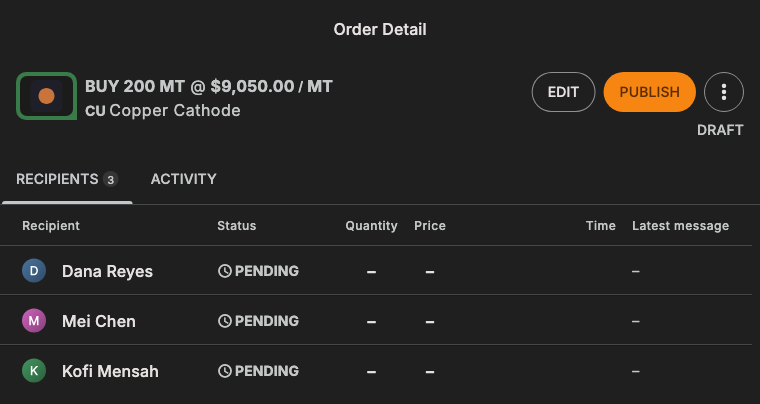
- EDIT opens the order form. Select UPDATE to save your changes. Nothing is sent, and the order stays a draft.
- PUBLISH sends the draft, after you confirm. If its start time has passed, it goes out now and becomes ACTIVE. If its start time is still ahead, it becomes SCHEDULED.
- DELETE, in the ⋮ menu, removes the draft for good, after you confirm. Nobody is told.
Order statuses
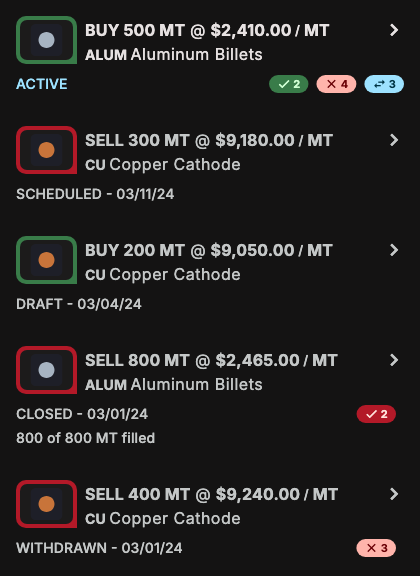
An order's status shows beneath it in the list and at the top of its details.
| Status | Meaning |
|---|---|
| ACTIVE | Sent. Its recipients can answer it. |
| SCHEDULED | Goes out at its start time. Only you can see it until then. |
| DRAFT | Saved but not sent. Only you can see it. |
| CLOSED | Filled in full. |
| WITHDRAWN | Ended by you, or by GGX at its end time. |
Each recipient's answer shows on the order's RECIPIENTS tab.
| Answer | Meaning |
|---|---|
| PENDING | No answer yet. |
| ACCEPTED | Took the order on its terms, possibly for part of the quantity. |
| COUNTERED | Offered other terms. |
| PASSED | Declined the order. |
| REJECTED | You declined their answer, removed them from the order, or the order filled or was withdrawn before you accepted. |
| WITHDRAWN or CLOSED | The order ended before they answered. |
| SUPERSEDED or MODIFIED | An earlier version of their counter. |
Manage an order you sent
Select an order on SENT to open its details. An ACTIVE order offers EDIT and SEND UPDATES, and WITHDRAW in its ⋮ menu.
Update your counterparties
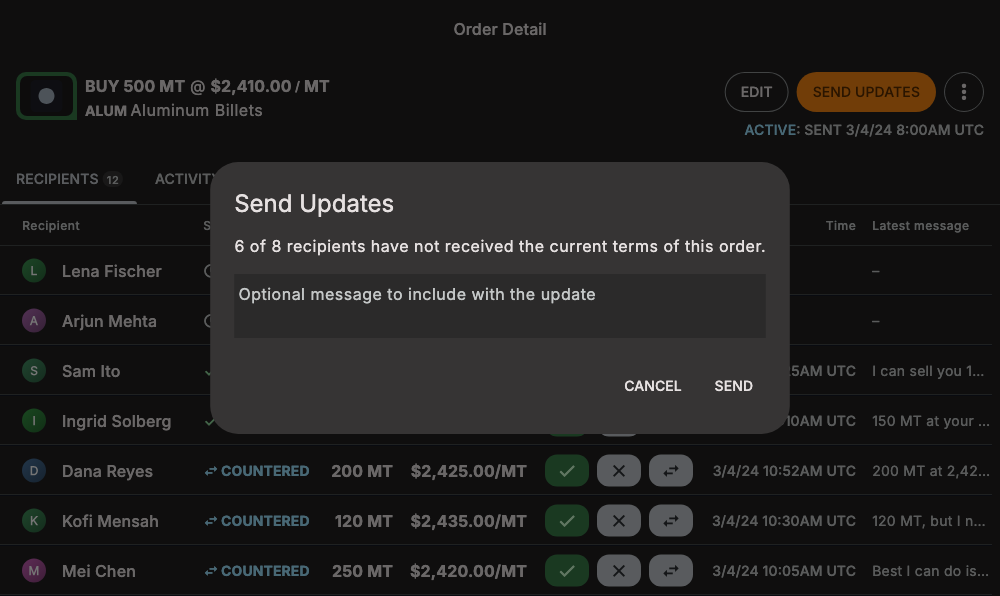
SEND UPDATES sends the order's current terms to every recipient who doesn't have them yet, with a note if you add one. The dialog tells you how many recipients that is, or that everyone is up to date. Select SEND. Each of them gets the terms in their conversation, marked as an update, and the order stays ACTIVE.
Every edit makes a new version of the order, including adding or removing recipients, so send updates after you edit.
Edit an order
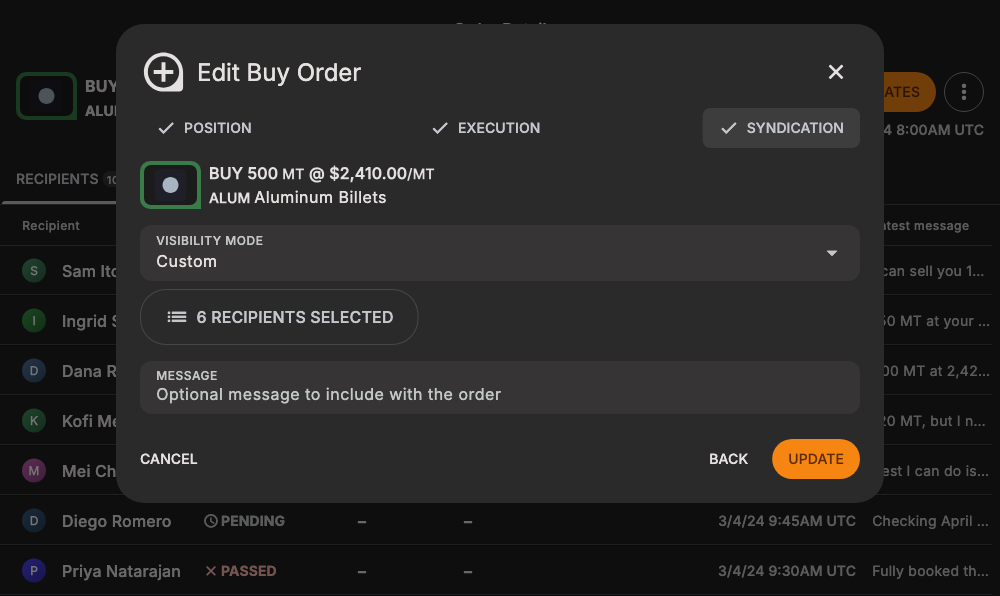
- Select EDIT. The order form opens with the order's current terms.
- Change what you need on any step. On SYNDICATION, select the recipients button to add or remove recipients.
- Select UPDATE.
Saving does not send your changes to the recipients who already have the order. Recipients who use GGX see the new terms wherever GGX shows them the order, but those you reach by email, SMS, or another channel hear about the change only when you select SEND UPDATES.
- Recipients you add receive the order right away, with your MESSAGE.
- Recipients you remove see the order as withdrawn, and their open answer becomes REJECTED. They get no message.
If the order has pending match proposals, GGX asks you to confirm first, because saving makes them unavailable.
Withdraw an order
-
Select ⋮, then WITHDRAW.
-
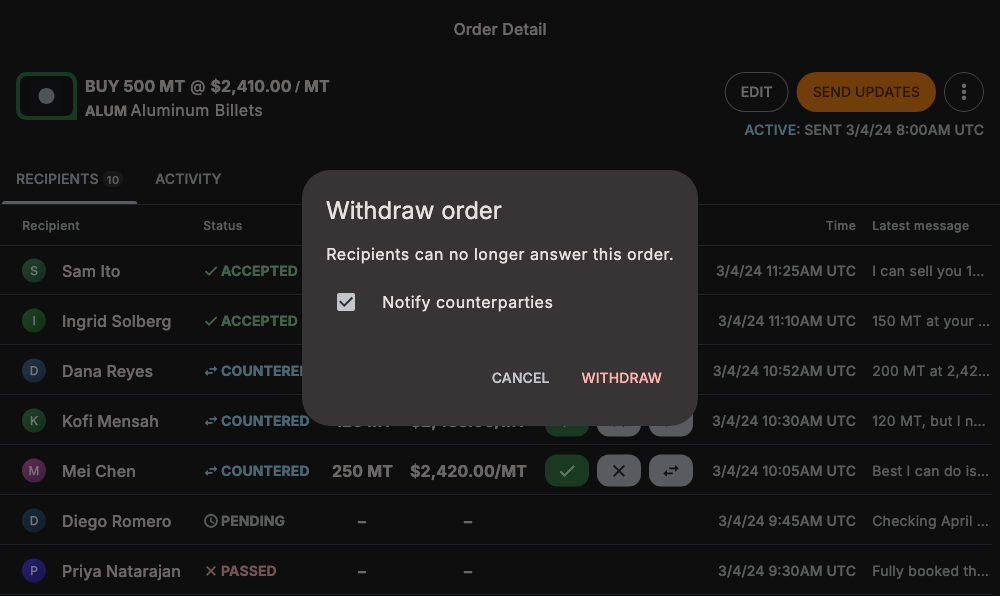
Keep Notify counterparties checked to tell each recipient in their conversation, or uncheck it to withdraw without telling them.
-
Select WITHDRAW.
The order becomes WITHDRAWN, and open counters and acceptances you have not confirmed become REJECTED. When you notify counterparties, each conversation gets the message "Order was withdrawn by the originator."