 GGX Help
Conversations
Message your counterparties and keep each negotiation next to the orders it leads to.
Your conversations
Select CONVERSATIONS in the menu. On a large screen, the conversation you select opens beside the list.
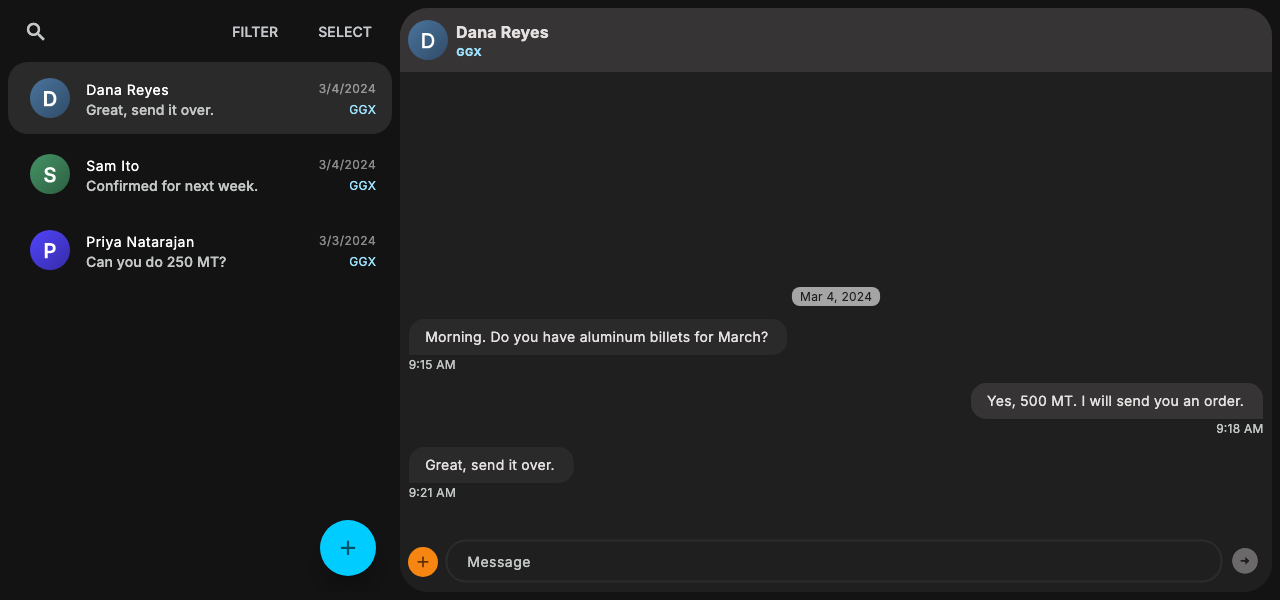
Each conversation shows the platform it runs on, such as GGX or SMS.
- Search finds a conversation by its name or members.
- FILTER narrows the list by platform (GGX, SMS, EMAIL, WHATSAPP, or TRILLIAN) or to unread conversations.
- SELECT opens up to eight conversations side by side on a large screen. Select the conversations you want, or Cmd-click them (Ctrl-click on Windows). With two or more open, the bar above them offers BLAST MESSAGE to send one message to all of them and CREATE ORDER to send all of them an order.
Start a conversation
- Select the + button below the list.
- In To:, choose one or more contacts. You can choose several only when all of them use GGX.
- To reach someone who is not in your contacts, type their email address or phone number and select the option to add it.
- Write your first message and send it. The new conversation opens.
Send messages
- Type in the Message box. Press Enter to send, or Shift+Enter to start a new line.
- The + beside the box sends an ORDER, takes a picture with the CAMERA, or attaches a PHOTO. Images can be up to 20 MB.
- An email conversation needs a subject.
- Messages on GGX and by email are included in every plan. Sending by SMS, WhatsApp, or Trillian requires a paid plan.
- To reply to one message in a thread, select the message, or open its menu by holding it or right-clicking it.
Orders in a conversation
An order sent to a conversation appears in it as an order card.
- On an order you receive, BUY or SELL accepts it, PASS declines it, and COUNTER proposes other terms. The button names your side of the trade. A request for quote offers QUOTE instead of COUNTER.
- On your own active order, open the card's menu to modify or withdraw it.
- When a counterparty accepts your order, select CONFIRM BUY or CONFIRM SELL to complete the trade, or WITHDRAW to back out. An order set to auto-finalize completes without this step.
See Orders for the full set of order actions.
Automatic replies
Conversations with contacts who reach you by SMS, email, WhatsApp, or Trillian show an AI mode button. Choose AUTO to have GGX reply automatically, or MANUAL to write every reply yourself. Automatic replies require a paid plan.